

Hello everyone. Recently, I've been getting comments like "Wait, which part are you pointing at?" more often when sharing my screen during online meetings. Just a mouse cursor isn't clear enough, you know.
So I built Desktop Ink, an app that lets you draw directly on the Windows screen. There are existing tools out there, but they require old versions of .NET Framework which are a hassle to install, or they have too many features making them hard to use. This time, I focused on the bare minimum features and rebuilt it with .NET 10.
Repository and Download
- Repository: https://github.com/atman-33/desktop-ink
- Download: https://github.com/atman-33/desktop-ink/releases
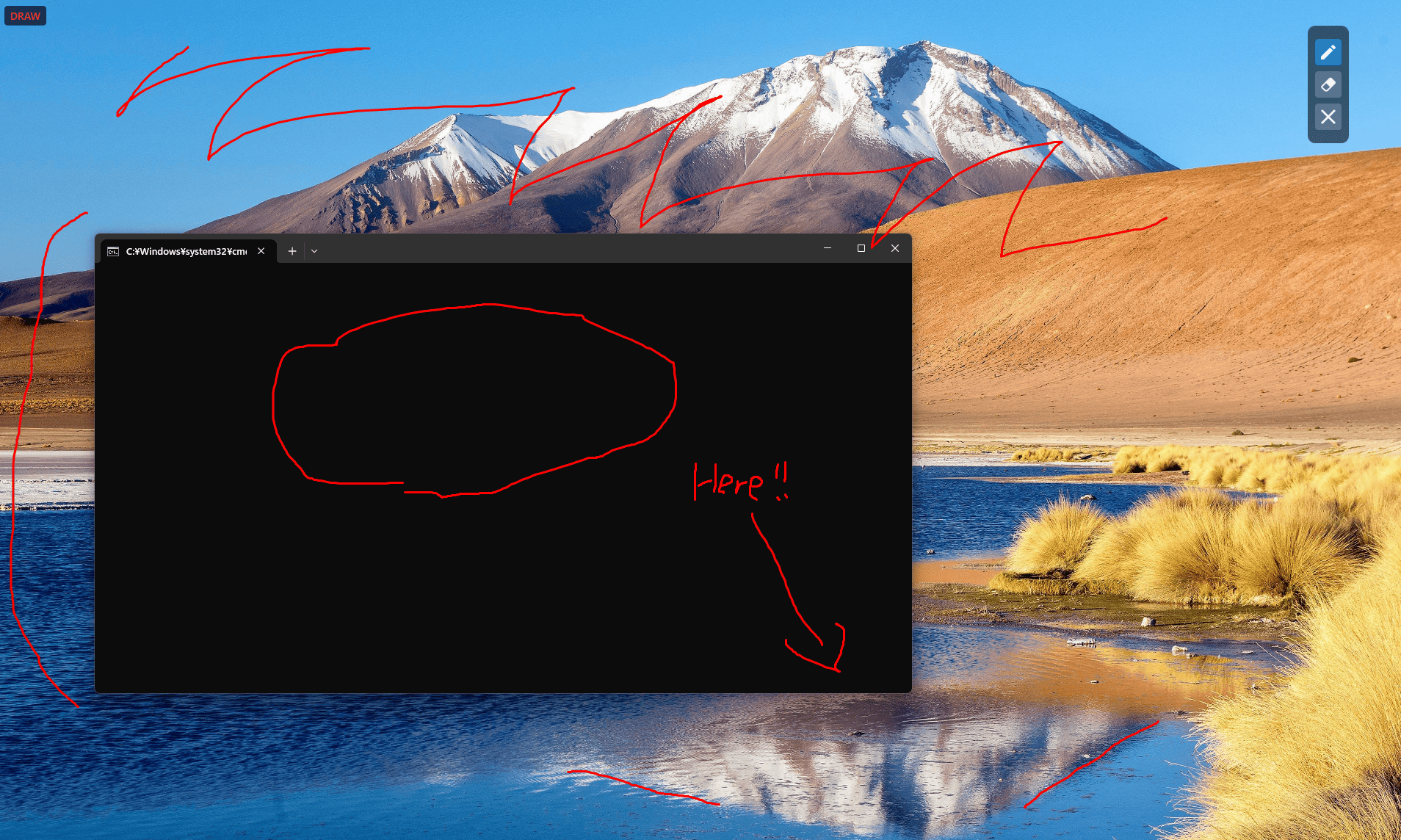
What Features Does It Have
The basic concept of this app is "free drawing on a transparent overlay that's always on top." It supports multi-monitor environments, creating a transparent fullscreen window for each monitor.
Two Drawing Modes
There are two drawing modes.
Permanent Draw Mode
This is the standard drawing mode that can be toggled with Win+Shift+D. When turned on, you can draw lines anywhere on the screen, and they won't disappear until you turn it off. Useful for marking areas you want to emphasize during presentations or when you want to leave notes.
Temporary Draw Mode
This is my personal favorite feature. Double-click and hold the Alt key, and you can draw only while it's held down. When you release the key, everything automatically disappears. Perfect when you want to mark something briefly during a meeting like "I'm explaining this part right now." No need to toggle, and no worries about forgetting to clear.
I initially considered mouse gestures, but compatibility issues with existing apps and false detection problems led me to settle on Alt double-click. It's a simple implementation that works surprisingly naturally.
Control Palette
A small floating window with toggle buttons for drawing mode, clear all, and exit. For those who prefer mouse operations. The palette itself can be moved by dragging. I made it semi-transparent so it doesn't get in the way, but honestly keyboard shortcuts are probably easier to use.
Here are the hotkeys:
| Hotkey | Action |
|---|---|
Win+Shift+D | Toggle draw/transparent mode |
Win+Shift+C | Clear ink strokes on all monitors |
Win+Shift+Q | Exit app |
Architecture Talk
It's built with WPF. The structure is simple, consisting of the following elements:
- Overlay Windows: Fullscreen transparent windows, one per monitor
- Control Window: Draggable control palette
- Keyboard Hook Manager: Low-level keyboard hook for global hotkeys and temporary mode detection
- Overlay Manager: Lifecycle management of overlays in multi-monitor environments
Transparency and Hit Testing Mechanism
The most interesting part was the window transparency handling. In WPF, you can create transparent windows using WindowStyle="None" and AllowsTransparency="True", but the problem is "completely passing through mouse events to windows underneath when not in drawing mode."
At first, I just set Background="Transparent", which made it transparent but still captured click events. This prevented operating apps underneath. Then I tried IsHitTestVisible="False", but this time it couldn't receive mouse events even in drawing mode.
In the end, I used Win32 API to dynamically toggle the WS_EX_TRANSPARENT style.
// Pass-through mode
var extendedStyle = GetWindowLong(hwnd, GWL_EXSTYLE);
SetWindowLong(hwnd, GWL_EXSTYLE, extendedStyle | WS_EX_TRANSPARENT);

// Draw mode
SetWindowLong(hwnd, GWL_EXSTYLE, extendedStyle & ~WS_EX_TRANSPARENT);
This style change is executed every time the mode is switched. A bit crude, but it's the simplest and most reliable approach.
Multi-Monitor Support
I'm using System.Windows.Forms.Screen.AllScreens to get all monitor information. WPF doesn't have a standard API for multi-monitor management, so this is the only part that depends on WinForms. For each monitor, I calculate position and size and place fullscreen overlay windows.
foreach (var screen in Screen.AllScreens)
{
    var overlay = new OverlayWindow
    {
        Left = screen.Bounds.Left,
        Top = screen.Bounds.Top,
        Width = screen.Bounds.Width,
        Height = screen.Bounds.Height
    };
    overlay.Show();
}
Repositioning when monitor configuration changes isn't implemented yet, actually. It maintains the monitor layout at app startup. If you change display settings, you need to restart. Well, I don't think many people change monitor configuration while using it, so it's low priority.
Low-Level Keyboard Hook Implementation
For global hotkeys and Alt double-click detection, I'm using Win32's SetWindowsHookEx. WPF events don't work when the app isn't focused, so a low-level hook was absolutely necessary.
Alt double-click detection is surprisingly tricky. Get the system's double-click time with GetDoubleClickTime() and record the timing of Alt presses.
private DateTime _lastAltPressTime;

if (keyPressed && vkCode == VK_ALT)
{
    var now = DateTime.Now;
    var interval = (now - _lastAltPressTime).TotalMilliseconds;

    if (interval < GetDoubleClickTime())
    {
        // Alt double-click detected
        _isTemporaryDrawMode = true;
    }
    _lastAltPressTime = now;
}
Detection of when the Alt key is released is also done with the same hook. Drop the _isTemporaryDrawMode flag and clear all overlay ink strokes.
This code actually had a bug at first. When you "hold down" the Alt key, key events keep firing continuously, causing false triggers of double-click detection. I added processing to ignore key repeats, counting only the initial press to solve it.
Comparison with Existing Tools
Similar tools like Epic Pen or ZoomIt are famous. These are feature-rich, with color changes, brush size adjustments, screenshot functions, etc. However, Epic Pen requires .NET Framework 4.5.2, so additional installation is needed on recent Windows environments. ZoomIt is portable, but personally I found it hard to use because of too many features.
Desktop Ink is specialized for "temporarily marking during screen sharing" purposes. Single red color, fixed brush size. In return, it's .NET 10 so no additional runtime installation required (it's pre-installed on Windows 11). Builds are fast too.
By cutting features, the implementation becomes simple and maintainable, which is a secondary benefit. The entire codebase is just over 1000 lines.
What I Noticed After Using It
After actually using it several times, I realized Temporary Draw Mode is more convenient than I imagined. The flow of "hold Alt and circle → release → disappears" is natural during presentations. No toggle needed, so no worry about lines remaining on screen.
I honestly don't use the Control Palette that much. Once you get used to keyboard shortcuts, switching to mouse operation becomes a hassle. Well, there are people who aren't good at memorizing hotkeys, so it doesn't hurt to have.
I implemented multi-monitor support, but when I actually tried it in a 3-monitor environment, it works better than expected. I was worried about strokes being interrupted between monitors, but since each overlay is independent, there's no problem.
What's Not Done Yet
Color changes and brush size adjustments aren't implemented. I've decided on "single red color, fixed size." I might add them in the future if there's demand, but it's low priority.
Also, there's no stroke saving function. Everything disappears when you close the app. I'm not considering persistence, so it's not suitable for note-taking purposes. Please use it purely as a temporary marking tool.
Eraser function is also not implemented. There's clear all (Win+Shift+C), but you can't partially erase. Using InkCanvas's standard features would make implementation easy, but I think it's unnecessary for the intended use.
Conclusion
Desktop Ink was built aiming for "lightweight operation with bare minimum features." I want people who find existing tools heavy and hard to use to try it.
The repository is published under MIT License, so pull requests are welcome if you want to add features. Forking and modifying it for your own use is also fine.
By the way, the Alt double-click idea was borrowed from another tool (I forgot which one specifically). I initially thought I came up with it myself, but when I traced my memory, I had a sense of déjà vu. Well, good ideas should spread, so no problem.
Anyway, try using it in online meetings. Screen sharing will become just a bit more comfortable.
Related Articles
How to Restore 'Open with Code' in VSCode Right-Click Menu
Learn how to restore the missing 'Open with Code' option in Windows right-click context menu with two effective methods: VSCode reinstallation and manual registry file configuration.
Connecting AI Tools to Obsidian with MCP Server - Gemini CLI & Kiro Guide
Learn how to set up Obsidian MCP server to control your notes from Gemini CLI and Kiro. Complete guide including Windows and WSL environment setup.
How to Set Up Serena MCP with Qoder on Windows
This guide explains how to resolve connection issues between Qoder and Serena MCP in a native Windows environment by using the HTTP server mode.